At some point between wiring the solar panels and setting up the Starlink dish, I realized that our Airstream had more technology in it than most apartments I've lived in. And like any engineer with a problem he didn't technically need to solve, I started automating things.
This is the story of how a 1979 Airstream became a smart home. A very small, very aluminum smart home.
Why automate an Airstream?
Three reasons: safety, comfort, and reliability. In that order.
Safety, because we park in remote places with two small kids. I wanted eyes on the outside of the trailer when we're sleeping. I wanted to know if someone was at the door at 2am in a national forest campground.
Comfort, because managing temperature in a metal box is a full-time job. The Airstream is an oven in the desert and an icebox in the mountains. I wanted the AC and heat to respond to conditions automatically instead of Carol and me waking up sweating or shivering.
Reliability, because the electrical system is the most critical piece of infrastructure we have, and I wanted automated monitoring and smart management of how we charge and discharge.
The brain: Raspberry Pi + Home Assistant
The whole system runs on a Raspberry Pi 4 tucked behind a cabinet panel. It draws about 5 watts and runs Home Assistant, which is an open-source home automation platform. If you've used SmartThings or Apple HomeKit, it's similar, but it runs locally on your own hardware instead of depending on someone else's cloud.
That local-first approach matters when your internet is a Starlink dish that sometimes drops during firmware updates and a cellular hotspot that loses signal in mountain valleys. If the automation brain depends on the cloud, it stops working exactly when you need it most. Home Assistant on a local Pi means the automations keep running whether or not we have internet.
The Pi connects to everything over the local WiFi network inside the Airstream. I access the dashboard from a wall-mounted tablet next to the door, from my phone, or from my laptop.
Safety: Wyze cameras everywhere
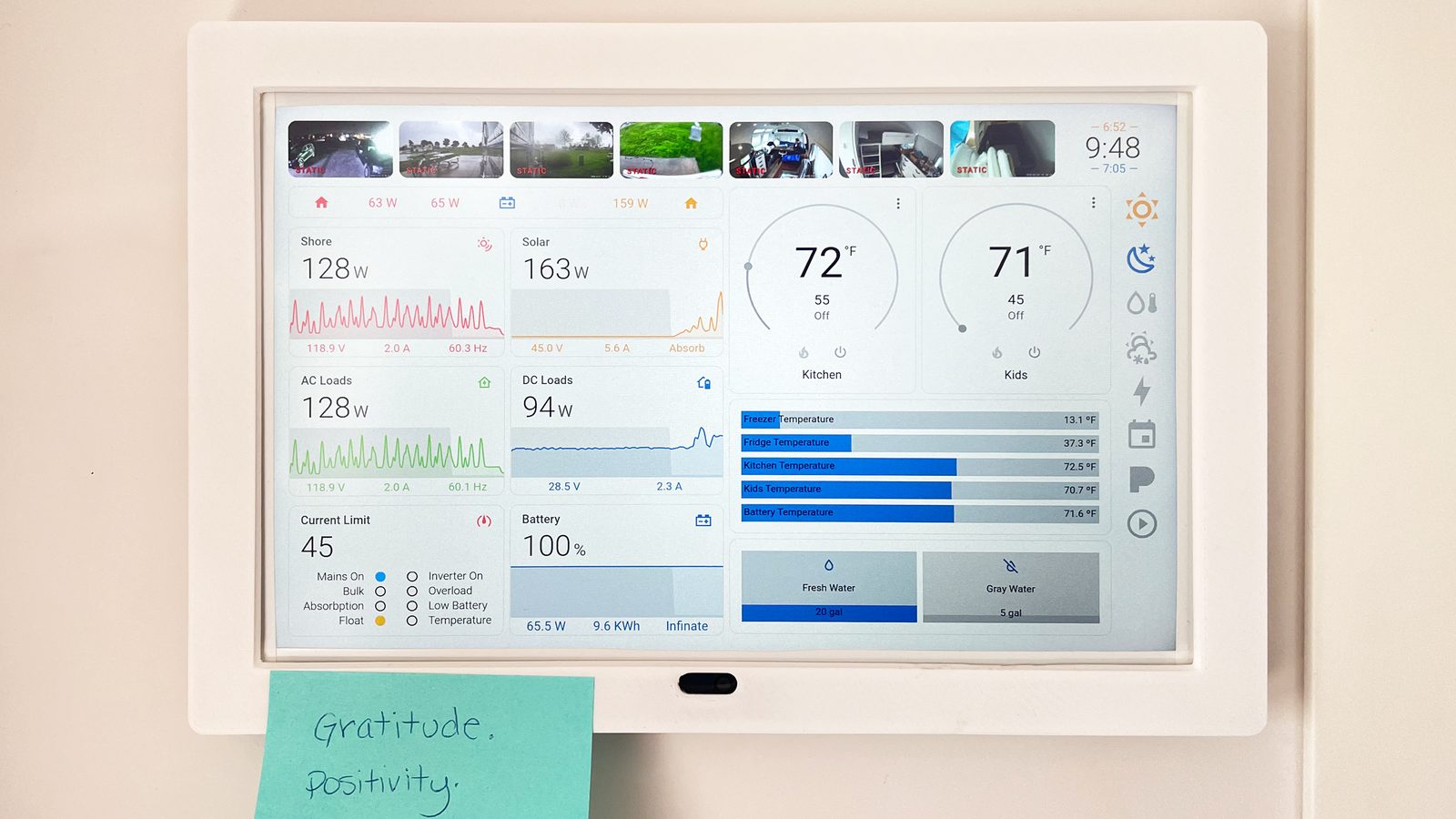
We run Wyze cameras throughout the Airstream and on the truck. They're cheap, they're reliable, and they run on the local network with RTSP firmware so the feeds stay local to our Home Assistant instance instead of going to Wyze's cloud. You can see the feeds in the camera row across the top of the dashboard.
The hitch camera doubles as a backup camera while driving. It records continuously, giving me a live view of whatever's behind us on the dashboard and a dashcam archive of every mile. When we're parked, it becomes a security camera. Same camera, different job depending on context. The truck bed camera watches the bikes and gear, sending an alert if it detects motion while we're parked. Bike theft at campgrounds is a real thing that happens to real people.
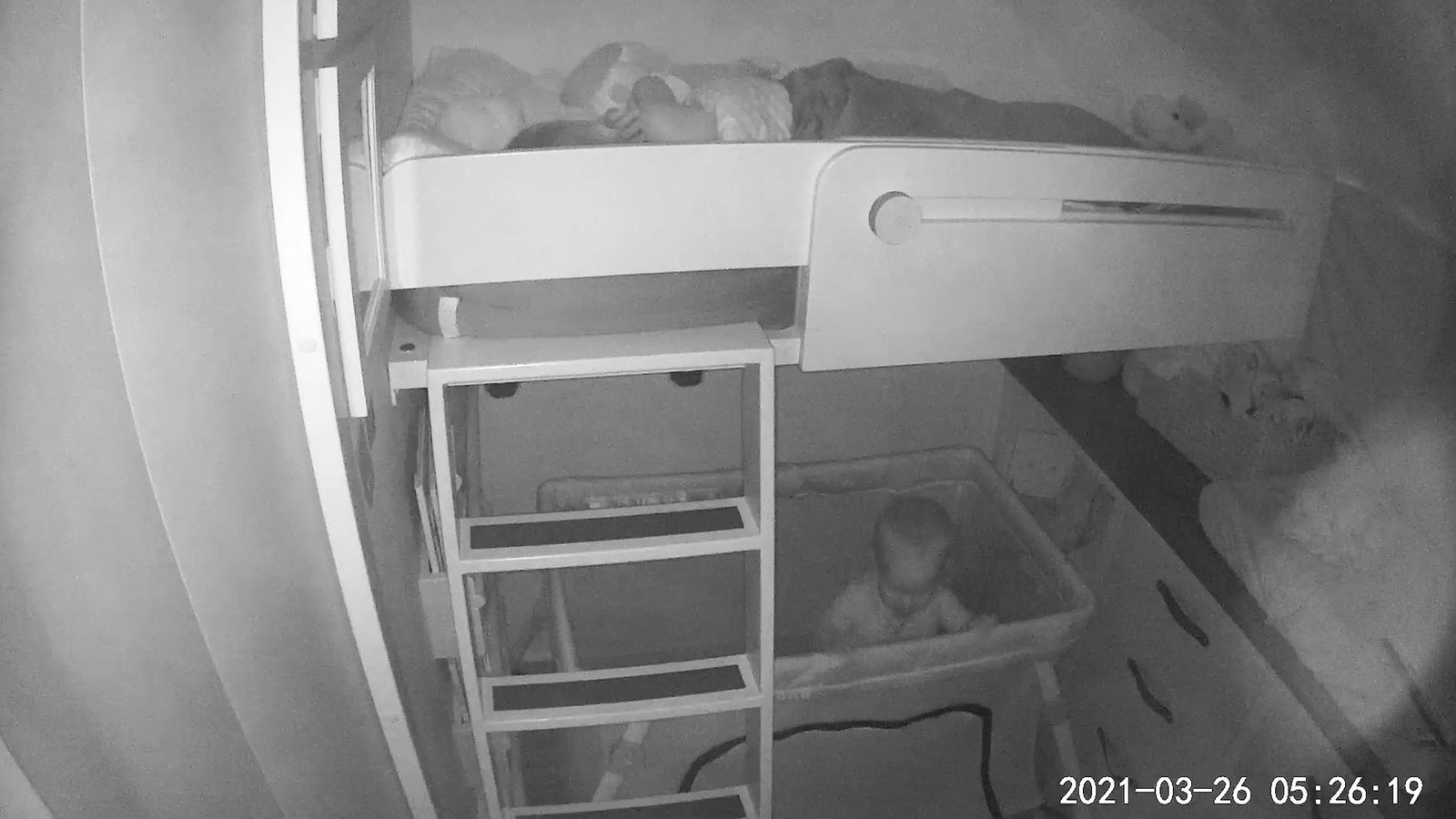
Inside the Airstream, we have cameras on the kids' sleeping area and at the door. The kids' room camera was originally for keeping an eye on baby Millie. She had a talent for waking up at 5am and silently plotting her escape from the crib. The night vision caught everything.
The door camera runs motion detection between 10pm and 6am and triggers a notification to my phone. This is how we caught the now-famous Alaska bear video. We were parked in a campground, everyone was asleep, and the camera picked up motion at the storage compartment. I woke up to the notification, opened the live feed, and watched a black bear systematically try to open the latch. He didn't get in. The latch held. But watching a bear try to break into your home while your kids sleep ten feet away is the kind of experience that validates every dollar you spent on cameras. That video lives on Carol's Instagram and has more views than anything else we've ever posted.
The automations tie it all together. Motion at the door after dark sends a push notification with a snapshot. Motion in the truck bed while parked sends an alert. The hitch camera auto-records when the truck's ignition is on. All feeds are accessible from the dashboard, from my phone, or from anywhere with internet.
Comfort: automated climate control
Temperature management in an Airstream is a constant battle. The aluminum shell has zero thermal mass. When the sun hits it, the interior temperature climbs fast. When the sun sets in the desert, it drops fast. The insulation helps, but you're still living in what is essentially a very shiny thermos.
I put temperature sensors in three locations: the main living area, the kids' sleeping area, and the exterior. Home Assistant reads all three and makes decisions. If the interior rises above 78 degrees and the AC is off, it turns it on. If the interior drops below 65 at night, the furnace kicks in. If the exterior temperature is cooler than the interior, it sends a notification suggesting we open the windows instead of running the AC (Carol's favorite automation, because she hates running the AC when the weather is nice).
The AC and furnace are connected through smart switches (Shelly relays, specifically, because they're small enough to fit behind the existing switches and they work with Home Assistant over local WiFi). The beauty of this is that it runs without us thinking about it. We go to bed, and the system manages the temperature overnight. On a 40-degree night in the Smoky Mountains or a 95-degree afternoon in Arizona, the kids sleep through it because the system responds before they notice.
Reliability: smart battery management
The Victron system already provides excellent battery monitoring through its own app. But I wanted deeper automation. Home Assistant reads the Victron data (battery state of charge, solar input, power consumption) and makes decisions based on rules I've written.
Example: if the battery drops below 30% and solar input is minimal (cloudy day or nighttime), the system automatically sheds non-essential loads. It turns off the water heater, reduces the refrigerator duty cycle, and sends me a notification. If it drops below 20%, it shuts off the inverter entirely except for the circuits powering the fridge and the Pi itself, then sends a more urgent notification.
This has saved us exactly twice in four years. Both times were during extended overcast periods in the Pacific Northwest where solar production was low for three or four days straight. The system caught the declining battery trend before I did and started shedding load automatically. By the time I checked my phone, it had already handled it.
On the charging side, when we're plugged into shore power, the system monitors the incoming voltage and amperage to detect issues with the campground's electrical supply. Bad shore power (low voltage, dirty power, voltage spikes) can damage the inverter and batteries. If the system detects out-of-spec power, it disconnects from shore and switches to battery, then alerts me to check the pedestal.
The dashboard
Everything comes together on a Home Assistant dashboard that replaced Victron's Remote Monitoring (VRM) as our primary interface. The Victron data flows in over MQTT, which gives Home Assistant real-time access to everything: shore power voltage and frequency, solar production, AC and DC loads, battery state of charge, current limit, and water tank levels. The camera feeds sit in a row across the top. At a glance, I know exactly what's happening with every system in the Airstream.
The wall-mounted Fire tablet by the kitchen shows the full dashboard. But honestly, I use the mobile view more. Same data, dark mode, and it includes GPS coordinates, elevation, and speed from a connected tracker. I can check on the Airstream from anywhere: on a hike, at a coffee shop, or from bed at 2am when a notification wakes me up.
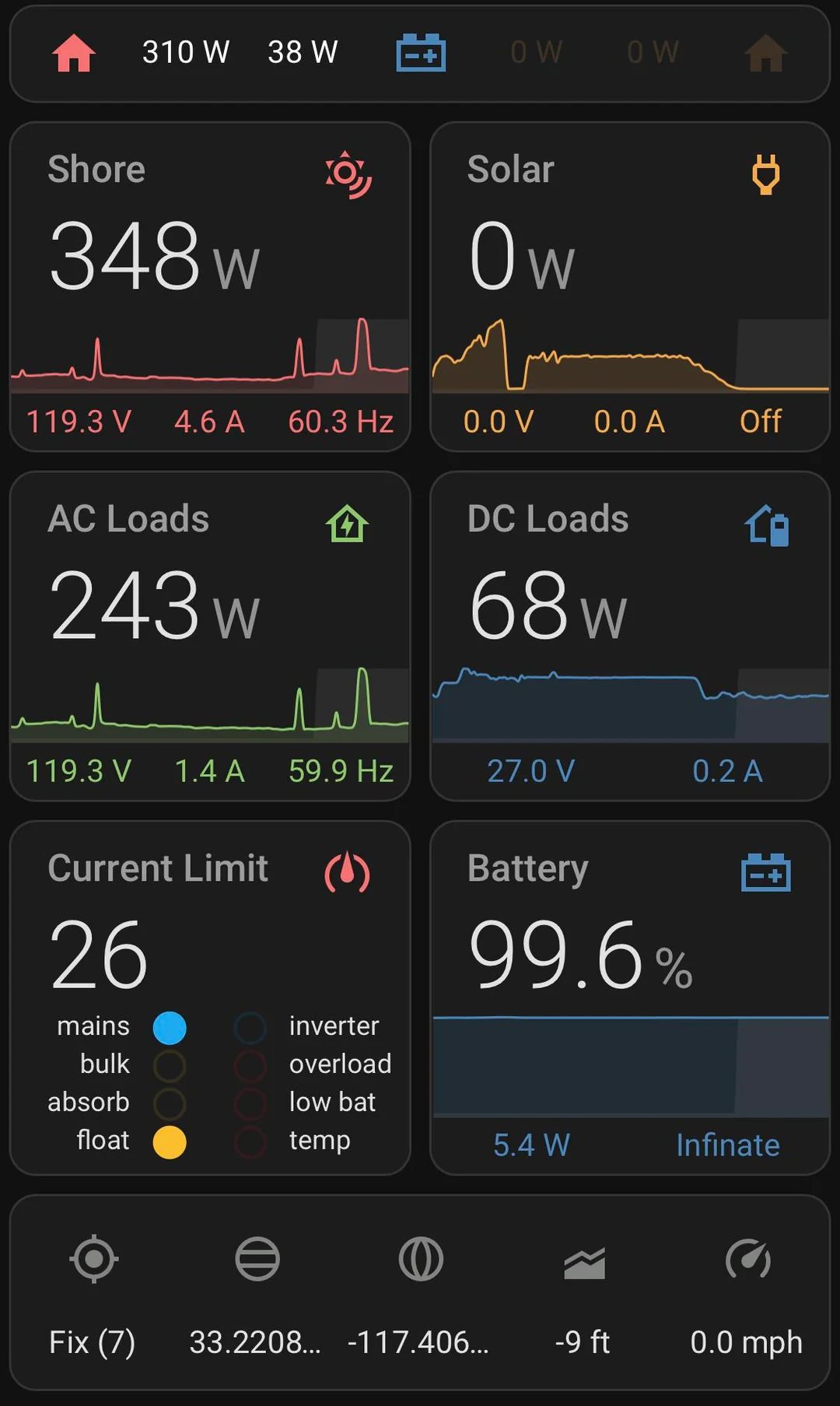
Carol calls it "the spaceship screen." Calvin likes to check the solar production numbers each morning and has gotten surprisingly good at predicting whether we'll have a surplus or deficit day based on the weather. Millie likes pressing buttons on it, which is why I added a child lock to the automation controls after she turned off the fridge that one time.
What it cost
Raspberry Pi 4: $55. Three Wyze cameras: about $75 total. Four Shelly smart relays: about $60 total. Temperature sensors: about $30. Fire tablet for the dashboard: $50. Total hardware cost for the smart home system: roughly $270.
The time cost is harder to quantify. Setting up Home Assistant, writing the automations, debugging the integrations, and iterating on the rules took the better part of a month of evenings. But I'm an engineer. This is what I do for fun. Carol would like me to note that "fun" is a word I use very generously here.
If you're considering something similar, start with the electrical system (detailed here) and the connectivity stack (detailed here). The smart home layer sits on top of both. Without solid power and reliable local networking, the automations have nothing to run on.